Introduction to Google Tasks and Project Management
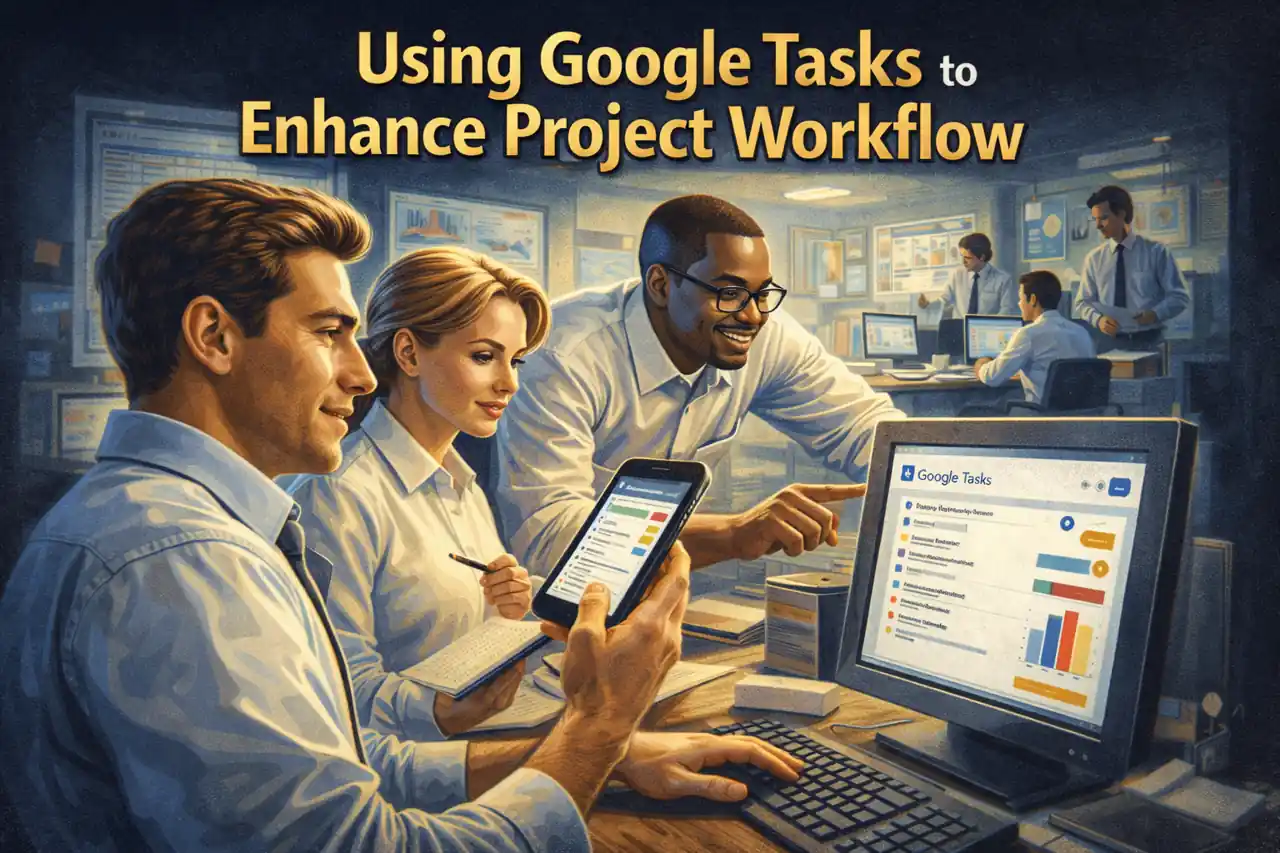
Effective task tracking is crucial for ensuring that projects are completed on time and within scope. One tool that has gained popularity among project managers and team members is Google Tasks. This productivity tool offers a simple yet powerful way to manage tasks, making it an essential component of any project management toolkit.
Overview of Google Tasks as a Productivity Tool
Google Tasks is a task management application that allows users to create, organize, and prioritize tasks seamlessly. It is designed to be user-friendly, enabling individuals and teams to:
- Create Task Lists: Users can create multiple lists to categorize tasks based on different projects or areas of focus.
- Set Due Dates and Times: Tasks can be assigned specific deadlines, helping teams stay on track and meet project timelines.
- Add Details and Subtasks: Each task can include additional details, such as descriptions and subtasks, which provide clarity and help break down larger projects into manageable steps.
This straightforward interface makes Google Tasks an ideal choice for project managers looking to enhance their workflow without the complexity of more robust project management software.
Importance of Task Management in Project Workflows
Effective task management is a cornerstone of successful project execution. It ensures that all team members are aware of their responsibilities and deadlines, which is vital for maintaining productivity and accountability. Key benefits of robust task management include:
- Improved Clarity: Clearly defined tasks help team members understand their roles and what is expected of them.
- Enhanced Collaboration: When tasks are visible to all team members, it fosters collaboration and communication, reducing the chances of miscommunication.
- Increased Efficiency: By prioritizing tasks and setting deadlines, teams can focus on what needs to be done first, leading to more efficient project execution.
Incorporating Google Tasks into project workflows can significantly enhance these aspects, making it easier for teams to stay organized and focused.
Integration with Other Google Services
One of the standout features of Google Tasks is its seamless integration with other Google services, such as Google Calendar and Gmail. This integration allows project managers and team members to:
- Sync Tasks with Calendar Events: Users can link tasks to specific calendar events, ensuring that deadlines are visible and easily manageable.
- Create Tasks from Emails: Team members can convert emails into tasks directly from Gmail, streamlining the process of task creation and ensuring that important items are not overlooked.
By leveraging these integrations, project managers can create a cohesive workflow that enhances productivity and keeps projects on track.
Google Tasks is a valuable tool for project management, offering essential features that support effective task tracking and collaboration. By integrating it into your project management toolkit, you can enhance your team’s workflow and drive project success.
Setting Up Google Tasks for Your Project
Integrating Google Tasks into your project management toolkit can significantly enhance your team’s workflow and task tracking capabilities. Here’s a comprehensive guide on how to effectively set up Google Tasks to meet your project needs.
Step 1: Create a Google Account
If you don’t already have a Google account, follow these steps to create one:
- Visit the Google Account Creation Page: Go to the Google account sign-up page.
- Fill in Your Information: Enter your first and last name, choose a username, and create a password.
- Complete the Setup: Follow the prompts to provide additional information, such as your phone number and recovery email, which can help secure your account.
- Agree to the Terms: Review and accept Google’s terms of service and privacy policy to finalize your account creation.
Having a Google account is essential as it allows you to access Google Tasks and other Google services seamlessly.
Step 2: Access Google Tasks
Google Tasks can be accessed through various platforms, making it convenient for project managers and team members to stay organized. Here’s how to access it:
- Web:
- Open your web browser and go to Google Tasks.
- You can also access it through Gmail by clicking on the Tasks icon on the right sidebar.
- Mobile:
- Download the Google Tasks app from the Google Play Store (for Android) or the Apple App Store (for iOS).
- Once installed, log in with your Google account to start using the app.
Step 3: Create Task Lists Specific to Projects
Creating task lists tailored to your projects and team needs is crucial for effective task management. Here’s how to do it:
- Open Google Tasks: Launch the app or access it via the web.
- Create a New Task List:
- Click on the “Add a new list” option (usually represented by a plus sign or a similar icon).
- Name your list according to the project or team focus (e.g., “Website Redesign” or “Marketing Campaign”).
- Add Tasks:
- Within your new list, click on “Add a task” to start entering tasks.
- Include details such as task descriptions, due dates, and subtasks to break down larger tasks into manageable steps.
- Organize and Prioritize:
- Drag and drop tasks to reorder them based on priority.
- Use the due date feature to set deadlines, ensuring that your team stays on track.
By following these steps, you can effectively set up Google Tasks to enhance your project management efforts. This tool not only helps in tracking tasks but also fosters collaboration among team members, ensuring everyone is aligned and informed about project progress.
Organizing Tasks: Best Practices
Integrating Google Tasks into your project management toolkit can significantly enhance your workflow and improve task tracking. Here are some best practices for organizing tasks within Google Tasks to ensure better clarity and efficiency:
- Utilizing Subtasks for Detailed Task Breakdown:
- Break down larger tasks into manageable subtasks. This approach allows team members to focus on specific components of a project, making it easier to track progress and identify bottlenecks. For example, if a task involves creating a marketing plan, subtasks could include research, drafting, and review stages. This granularity helps in assigning responsibilities and setting deadlines for each subtask, ensuring that nothing is overlooked.
- Color-Coding and Labeling for Priority Management:
- Use color-coding and labels to categorize tasks based on their priority or urgency. By assigning different colors to high, medium, and low-priority tasks, team members can quickly assess what needs immediate attention. Labels can also be used to indicate the type of task (e.g., “urgent,” “follow-up,” or “review”), which aids in visual organization and helps team members prioritize their workload effectively.
- Grouping Tasks by Project Phases or Team Responsibilities:
- Organize tasks into groups based on project phases (e.g., planning, execution, and closure) or by team responsibilities. This method not only clarifies who is responsible for what but also provides a clear overview of the project’s progress. For instance, creating separate lists for each project phase allows team members to focus on their current tasks without being overwhelmed by the entire project scope. Additionally, grouping tasks by team responsibilities can enhance collaboration and accountability, as everyone knows their specific roles within the project.
By implementing these strategies, project managers and team members can leverage Google Tasks to create a more organized and efficient project management environment. This structured approach not only improves task visibility but also fosters better communication and collaboration among team members, ultimately leading to successful project outcomes.
Integrating Google Tasks with Other Google Tools
Efficiency and organization are paramount. Google Tasks, a simple yet powerful tool, can significantly enhance your project workflow when integrated with other Google applications. Here’s how you can leverage Google Tasks alongside Google Calendar, Google Drive, and Gmail to streamline your project management processes.
1. Linking Google Tasks with Google Calendar for Deadline Tracking
Integrating Google Tasks with Google Calendar allows project managers and team members to visualize deadlines and manage their time effectively. Here’s how this integration can benefit your project management:
- Deadline Visibility: By linking tasks to specific dates in Google Calendar, you can easily see upcoming deadlines. This helps in prioritizing tasks and ensuring that nothing falls through the cracks.
- Reminders and Notifications: Google Calendar can send reminders for tasks due soon, keeping team members informed and accountable. This feature is particularly useful for managing multiple projects simultaneously.
- Task Management: You can create tasks directly from Google Calendar events, making it easier to convert meetings or deadlines into actionable items in Google Tasks.
2. Using Google Drive for Attaching Documents to Tasks
Google Drive serves as a central repository for project documents, and integrating it with Google Tasks enhances collaboration and accessibility:
- Document Attachment: You can attach relevant files from Google Drive directly to tasks in Google Tasks. This ensures that all necessary resources are readily available when team members are working on specific tasks.
- Real-Time Collaboration: Since Google Drive allows multiple users to edit documents simultaneously, team members can collaborate on project files linked to their tasks, improving efficiency and reducing the need for back-and-forth emails.
- Organized File Management: By associating tasks with specific documents, you can maintain a clear structure in your project management, making it easier to track progress and access information.
3. Integrating Google Tasks with Gmail for Task Creation from Emails
Gmail is a primary communication tool for many project teams, and integrating it with Google Tasks can streamline task creation and management:
- Task Creation from Emails: You can easily convert emails into tasks by using the “Add to Tasks” feature in Gmail. This allows you to create actionable items directly from your inbox, ensuring that important requests or follow-ups are not overlooked.
- Contextual Task Management: When tasks are created from emails, they retain the context of the conversation, making it easier to understand the task’s requirements and urgency. This is particularly useful for project managers who need to track action items from client communications or team discussions.
- Prioritization: By managing tasks created from emails within Google Tasks, you can prioritize them alongside other project tasks, ensuring that all aspects of your project are aligned and accounted for.
Integrating Google Tasks with Google Calendar, Google Drive, and Gmail creates a cohesive project management ecosystem that enhances task tracking and collaboration. By utilizing these tools together, project managers and team members can improve their workflow, stay organized, and ensure that projects are completed on time and within scope. Embracing these integrations not only simplifies task management but also fosters a more productive and collaborative team environment.
Collaborating with Team Members Using Google Tasks
Integrating Google Tasks into your project management toolkit can significantly enhance collaboration among team members. Here are some key features and strategies for using Google Tasks effectively in a team-based environment:
Sharing Task Lists with Team Members
- Creating Shared Lists: Google Tasks allows users to create task lists that can be shared with team members. This feature ensures that everyone is on the same page regarding project objectives and deadlines. To share a task list, simply create a new list in Google Tasks and share it via Google Drive or Google Workspace, allowing team members to view and contribute to the list.
- Visibility and Access: By sharing task lists, all team members can access the same information, which fosters transparency and accountability. This visibility helps in aligning team efforts towards common goals and deadlines.
Assigning Tasks to Team Members
- Task Assignment: While Google Tasks does not have a built-in feature for assigning tasks directly, you can effectively manage this by including team member names in the task descriptions. For example, when creating a task, you can write “Design mockup – Assigned to [Team Member’s Name].” This method clarifies who is responsible for each task.
- Using Google Calendar Integration: Google Tasks integrates seamlessly with Google Calendar, allowing project managers to assign deadlines and reminders for tasks. By linking tasks to specific calendar events, team members can receive notifications and stay updated on their responsibilities.
Monitoring Task Progress and Status Updates Collaboratively
- Real-Time Updates: Google Tasks provides a simple interface for tracking task completion. Team members can mark tasks as complete, which updates the status in real-time. This feature allows project managers to monitor progress without needing constant check-ins.
- Regular Check-Ins: Encourage team members to update their task statuses regularly. This practice not only keeps everyone informed but also helps identify any potential roadblocks early on. Regular updates can be discussed in team meetings, ensuring that everyone is aware of the project’s current status.
- Utilizing Comments and Notes: While Google Tasks is primarily a task management tool, using the notes section for each task can facilitate communication. Team members can leave comments or updates regarding their progress, which can be reviewed by others to stay informed about ongoing work.
By leveraging these collaborative features of Google Tasks, project managers and team members can enhance their workflow, improve communication, and ensure that tasks are completed efficiently. Integrating Google Tasks into your project management practices not only streamlines task tracking but also fosters a collaborative environment that is essential for successful project outcomes.
Tracking Progress and Adjusting Workflows
Integrating Google Tasks into your project management toolkit can significantly enhance your team’s ability to track progress and adjust workflows effectively. Here are some key strategies to utilize Google Tasks for better task tracking:
- Utilizing Checklists for Task Completion Tracking: Google Tasks allows users to create checklists within tasks, making it easier to break down larger projects into manageable steps. By checking off items as they are completed, team members can visually track their progress. This feature not only helps in maintaining focus but also provides a sense of accomplishment as tasks are completed. Encourage your team to use checklists for each task to ensure that no detail is overlooked and to facilitate smoother project execution.
- Reviewing Completed Tasks for Future Planning: Regularly reviewing completed tasks is crucial for effective project management. Google Tasks provides a straightforward way to look back at what has been accomplished. This review process can inform future planning by highlighting what strategies worked well and what didn’t. By analyzing completed tasks, project managers can identify patterns, assess team performance, and make informed decisions about future projects. This reflection can also help in recognizing team members’ contributions, fostering a positive work environment.
- Adjusting and Reprioritizing Tasks Based on Project Needs: Projects are dynamic, and priorities can shift rapidly. Google Tasks allows for easy adjustments to task lists, enabling project managers to reprioritize tasks as needed. By dragging and dropping tasks within the list, users can quickly reorganize their workload to align with changing project requirements. This flexibility is essential for responding to unforeseen challenges or opportunities, ensuring that the team remains agile and focused on the most critical tasks at any given time.
By effectively utilizing Google Tasks for tracking progress and adjusting workflows, project managers and team members can enhance their productivity and ensure that projects stay on track. This integration not only streamlines task management but also fosters a collaborative environment where team members can contribute to the project’s success.
Conclusion: Maximizing Efficiency with Google Tasks
Leveraging the right tools can significantly enhance workflow and productivity. Google Tasks stands out as a powerful ally for project managers and team members alike. Here’s a recap of the key benefits of integrating Google Tasks into your project management toolkit:
- Streamlined Task Management: Google Tasks allows users to create, organize, and prioritize tasks effortlessly. This streamlined approach helps teams stay focused on what needs to be done, reducing the chances of overlooking important deadlines.
- Seamless Integration with Google Workspace: As part of the Google ecosystem, Google Tasks integrates smoothly with other Google applications like Gmail and Google Calendar. This connectivity ensures that tasks are easily accessible and manageable within the tools you already use, enhancing overall efficiency.
- Enhanced Collaboration: By sharing task lists with team members, Google Tasks fosters collaboration. Team members can assign tasks, set due dates, and track progress collectively, ensuring everyone is aligned and accountable.
- Accessibility Across Devices: Google Tasks is available on multiple platforms, including web and mobile devices. This accessibility means that team members can manage their tasks anytime, anywhere, making it easier to stay on top of project requirements.
- User-Friendly Interface: The intuitive design of Google Tasks makes it easy for users of all skill levels to adopt. This simplicity encourages team members to engage with the tool, leading to better task tracking and project outcomes.
Find out more about Shaun Stoltz https://www.shaunstoltz.com/about/.
This post was written by an AI and reviewed/edited by a human.